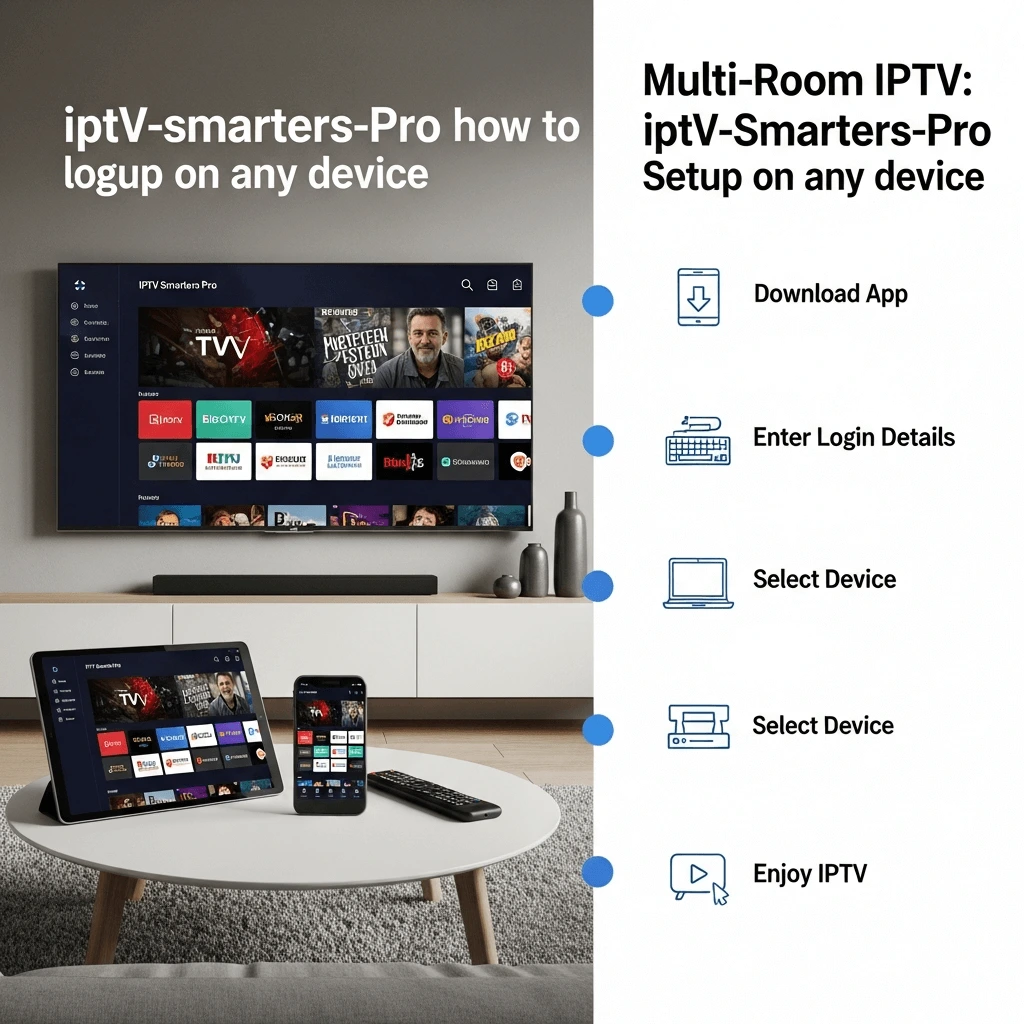
IPTV Smarters Pro: The Ultimate Guide to Login & Setup on Any Device (2025)
In the rapidly evolving world of digital entertainment, IPTV (Internet Protocol Television) has dethroned traditional cable. However, having a premium subscription is only half the battle. To truly unlock the potential of 4K streaming, live sports, and on-demand movies, you need a powerful media player. Enter IPTV Smarters Pro.
Widely regarded as the industry standard, IPTV Smarters Pro offers a sleek interface, multi-screen viewing, and seamless EPG (Electronic Program Guide) integration. But for beginners, the setup process can feel technical. Whether you are using an Amazon Firestick, an Android TV Box, an iPhone, or a Windows PC, the installation steps vary significantly.
This comprehensive guide will walk you through exactly how to download, install, and log in to IPTV Smarters Pro on every major platform in 2025. We will also cover the crucial differences between Xtream Codes and M3U Playlists, and troubleshoot common login errors.
Before We Start: What is IPTV Smarters Pro?
It is vital to understand that IPTV Smarters Pro is a video player, not a content provider. The app does not come with any channels, movies, or streams. It is simply the software engine that plays the content provided by your IPTV subscription service.
To use this app, you must have login credentials from a service provider. These usually come in one of two formats:
- Xtream Codes API: A combination of a Server URL, Username, and Password (Recommended).
- M3U Playlist URL: A long string of text that points to your channel list.
If you are looking for more details on how this player integrates with services, read our article on integrating IPTV Smarters Pro with premium services.
Step 1: Choosing Your Login Method
Once you have installed the app (guides for each device are below), you will be greeted by a login screen. In 2025, the interface offers a few options, but the Xtream Codes API is the gold standard for stability and features like Catch-Up TV.
Method A: Login with Xtream Codes API
Best for EPG, Catch-up, and organized categories.
- Open the app and select "Login with Xtream Codes API".
- Any Name: Enter a name for your playlist (e.g., "My TV").
- Username: Enter the username from your email.
- Password: Enter the password from your email.
- URL: Enter the server URL (usually starts with http://).
- Click Add User.
Method B: Load Your Playlist or File/URL
Use this only if your provider doesn't support API.
- Select "Load Your Playlist or File/URL".
- Playlist Name: Enter any name.
- Playlist Type: Select M3U URL.
- File/URL: Paste the extremely long link provided by your service.
- Click Add User.
*Tip: Typos in the URL are the #1 cause of login failures. Double-check every character. For a deeper dive, check our dedicated setup tutorial.
Step 2: Installation Guides by Device
1 Amazon Firestick (Fire TV)
The Amazon Firestick is the most popular device for IPTV due to its low cost and 4K capabilities. However, IPTV Smarters Pro is not available directly on the Amazon App Store. You must "sideload" it.
Prerequisite: You need the "Downloader" app.
- Go to Settings > My Fire TV > Developer Options. Turn ON "Apps from Unknown Sources". (If you don't see Developer Options, click "About" and click the Fire TV Stick name 7 times).
- Go to the Search bar and type Downloader. Install and open the orange app.
- In the URL box of Downloader, enter the direct download code for Smarters Pro (Search for "IPTV Smarters Pro APK" to find the latest specific short-code or URL).
- Click Go. The file will download.
- Click Install when prompted.
- Once installed, click Open and enter your login details.
For a more detailed walkthrough specifically for Firestick users, including screenshots, visit our guide on how to install IPTV on Firestick in 2025.
2 Android TV Boxes & Smartphones
For Android phones, tablets, and generic Android TV boxes (like NVIDIA Shield), the process is straightforward.
- Play Store Method: Open the Google Play Store and search for "IPTV Smarters Pro" or "Smarters Player Lite". If available, simply click Install.
- APK Method: If the app is removed from the Play Store, open your browser (Chrome) and search for "IPTV Smarters Pro APK". Download the file and open it to install. You may need to allow "Installation from Unknown Sources" in your Android security settings.
3 iOS (iPhone, iPad, Apple TV)
Apple has stricter regulations. The original "IPTV Smarters Pro" is often rebranded or replaced on the App Store.
Instructions:
- Open the App Store.
- Search for "Smarters Player Lite" (This is the official iOS version of the same app).
- Download and install.
- The interface is identical to the Pro version. Enter your Xtream Codes API details to log in.
4 Samsung & LG Smart TVs
Smart TVs run on proprietary operating systems (Tizen for Samsung, WebOS for LG).
The Challenge: Smarters Pro is occasionally removed from these official stores.
The Solution:
- Check the Samsung Apps Store or LG Content Store for "IPTV Smarters Pro".
- If found, install and login.
- If NOT found, search for alternatives like IBO Player, Nanomid, or Set IPTV. These apps work similarly but may require a small activation fee after a trial.
- Recommendation: We highly recommend using a Firestick on Smart TVs. It is faster, updates easier, and supports better VPNs.
5 Windows PC and macOS
Watching on a laptop is great for travel. You don't need an emulator (like Bluestacks) because Smarters has a native desktop application.
- Search Google for "IPTV Smarters Pro for Windows" or "for Mac".
- Download the .exe (Windows) or .dmg (Mac) file.
- Install the software.
- Launch the app. The interface will look like the mobile version. Login using your credentials.
Troubleshooting: Common Errors & Fixes
Error: "Invalid Details" or "Authorization Failed"
This is the most common error. It usually means:
- You mistyped the Username or Password (case sensitive!).
- The Server URL is incorrect (check for http:// vs https://).
- Your subscription has expired. Check your renewal status here.
Error: Buffering or Freezing
If you log in successfully but channels freeze:
- Reset your Router: Unplug it for 30 seconds.
- Clear Cache: Go to Settings inside the Smarters App > General Settings > Clear Cache.
- Change Format: In Settings > Stream Format, change from MPEGTS to HLS (or vice versa).
For a complete list of fixes, read our guide on 5 ways to stop IPTV buffering.
Issue: EPG (Guide) Not Loading
If you can watch channels but can't see what's playing:
- Click the "Install EPG" button on the main dashboard.
- If it fails, go to Settings > EPG > Refresh EPG.
- Ensure you logged in using Xtream Codes (M3U playlists often lack EPG data).
Alternatives to IPTV Smarters Pro
While Smarters Pro is excellent, it isn't the only player in town. Depending on your device, you might prefer a different interface.
TiviMate
The premium choice for Android/Firestick. Best UI in the market.
XCIPTV
Very user-friendly, great for touchscreens and seniors.
GSE Smart IPTV
Good for iOS and complex playlist management.
Curious about how these compare? Read our in-depth comparison of the top 5 alternatives to IPTV Smarters Pro.
Why Choose IPTV Smarters Pro? Key Features
Once you are set up, here are the features you should explore to maximize your experience:
- Multi-Screen Search: Watch up to 4 channels simultaneously on one screen (Great for sports days).
- Parental Control: Lock adult categories or specific channels with a PIN code.
- External Player Support: Don't like the built-in player? You can link VLC or MX Player within the settings.
- Catch-Up TV: If your provider supports it, you can watch shows from the last 3-7 days directly via the EPG.
For a detailed breakdown of every hidden button and setting, check our comprehensive guide to Smarters features.
Conclusion
Setting up IPTV Smarters Pro might seem daunting at first, especially with the need to sideload apps on devices like the Firestick. However, the effort is well worth it. You get a professional, cable-like interface that organizes thousands of channels and VODs into an easy-to-navigate layout.
Remember, the quality of your experience depends heavily on two things: your internet connection and your IPTV service provider. A great app cannot fix a bad server.
Still having trouble with setup?
Don't waste hours scrolling through forums. Our support team is here to help you get connected instantly.