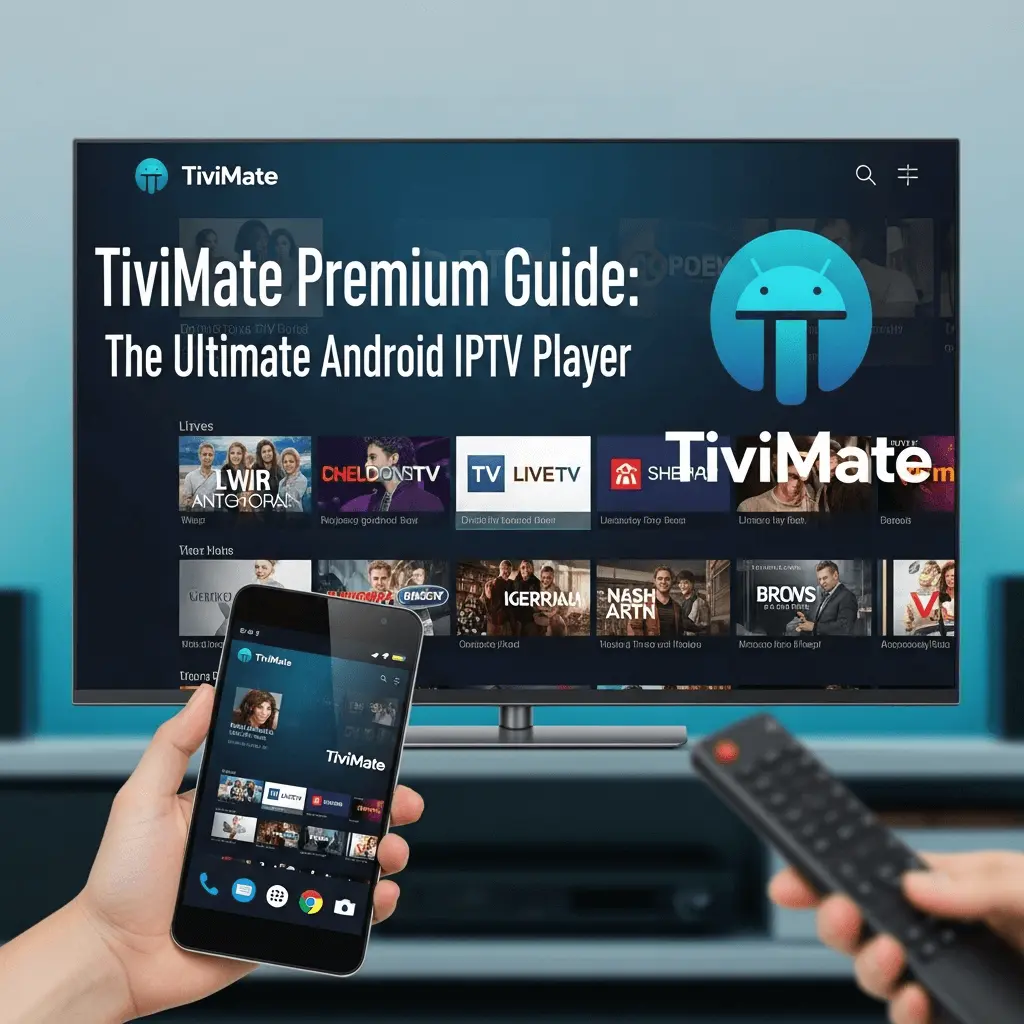
TiviMate Premium Guide: The Ultimate 4K IPTV Player for Firestick and Android TV (2025)
If you are using an Android-based streaming device—be it an Amazon Firestick (4K/Max), an NVIDIA Shield, or a generic Android TV Box—there is one player that stands above the rest: TiviMate IPTV Player. It is widely considered the best IPTV player ever made because it masterfully mimics the seamless, aesthetic, and functional experience of a premium cable TV box, but with the unparalleled flexibility of an IPTV service.
TiviMate, however, is just the interface. To deliver stunning 4K anti-freeze streams and access 20,000+ premium channels, it requires a high-quality, reliable source. This comprehensive guide will show you exactly how to install, set up, and optimize TiviMate Premium with your Storuno IPTV subscription, transforming your streaming setup into the ultimate entertainment hub.
1. Why TiviMate is #1: Superior Design and Core Features
TiviMate's dominance comes from its singular focus on the large screen experience. Unlike many alternatives that feel like ported mobile apps, TiviMate is built from the ground up to be controlled perfectly with a standard TV remote control.
Essential Features Unlocked by TiviMate Premium
- Ultimate EPG (Electronic Program Guide): Features a modern, lightning-fast EPG that is fully customizable (colors, fonts, layout), making channel surfing seamless and intuitive—far superior to basic player interfaces.
- Multi-View / Multi-Screen: The killer feature for sports fans. You can watch up to 4 different live channels on the same screen at once. This is perfect for monitoring multiple NFL or NHL games simultaneously.
- Integrated Recording (PVR): You can schedule and record live TV directly to local storage (USB drive, MicroSD card, or network drive), a feature essential for catching shows you miss.
- Catch-up Support: Seamlessly access and replay shows that aired up to 7 days prior (requires the feature to be enabled by the IPTV provider like Storuno).
- Customizable Channel Sorting: Easily hide channels, create custom favorites lists, and rename channels to keep your vast Storuno library perfectly organized.
2. Premium vs. Free: Why the Upgrade is Non-Negotiable
While the free version of TiviMate allows basic channel viewing, the features that make it the ultimate player are locked behind the affordable Premium tier (typically around $10 USD per year).
The Premium Feature Matrix
The Premium upgrade is not optional if you plan to use TiviMate as your primary cable replacement. Without it, you lose the primary reasons to use the app.
- ? No Multi-View / Multi-Screen
- ? No Recording (PVR) capabilities
- ? No Catch-up TV support
- ? No Customizable Favorites / Hide Channels
- ? No Multiple Playlist Support (limited to one account)
3. Step-by-Step Installation on Amazon Firestick
Because TiviMate is not available in the Firestick's default App Store, you must use the sideloading method via the Downloader app. Ensure you complete Step 1 before proceeding.
Installation Prerequisites (Unlock Developer Options)
- Go to Settings (gear icon) -> My Fire TV -> About.
- Highlight Fire TV Stick and press the select button 7 times rapidly until the "Developer Mode" is enabled.
- Go back to My Fire TV and select Developer Options.
- Turn ON Apps from Unknown Sources for the Downloader app.
Using the Downloader App
- Return to the Home screen and select the Search (magnifying glass) icon.
- Type Downloader and install the orange icon app.
- Open Downloader and, in the URL bar, enter the specific download code provided by the TiviMate community (e.g., a common 5-digit code or URL) to fetch the official APK file.
- Click Install when the download is complete. Once installed, click DONE and choose to Delete the APK file to save storage space.
For visual assistance on setting up Downloader and sideloading, see our detailed guide: Install IPTV on Firestick 2025 Guide: 4K Anti-Freeze Setup.
4. Connecting Storuno IPTV: The Xtream Codes API Method
Once TiviMate is installed, the next critical step is adding your Storuno subscription. You have two options (M3U or Xtream Codes API), but we strongly recommend the API method for stability and complete EPG integration.
Step-by-Step Playlist Activation
- Open TiviMate and select Add Playlist.
- Choose Xtream Codes (Do NOT choose M3U if the API option is available).
- Enter the details sent to your email by Storuno after subscribing:
- Server Address: (The Portal URL, e.g., http://portal.storuno.shop:8080)
- Username: (Your unique Storuno username)
- Password: (Your unique Storuno password)
- Click Next and wait for the channels and EPG (Electronic Program Guide) data to fully load. This can take a minute due to the massive content library.
Why Xtream Codes API? This method ensures TiviMate automatically receives EPG data, channel logos, and VOD categories, offering far better management and reliability than a raw M3U link. Storuno's service is fully optimized for this API method.
TiviMate needs a high-quality, anti-freeze source for its multi-view features to work correctly. Don't have a subscription yet? View Storuno IPTV Upgrade and Pricing Plans to populate your TiviMate with premium channels today.
5. Advanced TiviMate Optimization for 4K Anti-Freeze Performance
To maximize the stability of your 4K streams and utilize TiviMate's full power, adjust these settings within the app:
Playback and PVR Optimization
- Set Buffer Size: Go to Settings > Playback > Buffer Size. Increasing this slightly (e.g., from Moderate to Large) can help absorb minor network fluctuations, reducing the chance of freezing on demanding 4K channels.
- PVR/Recording Location: Since Firesticks have limited storage, configure your PVR settings to record to an external USB drive or a network-attached storage (NAS) device. Go to Settings > PVR > Recorded folders.
- Multi-View Setup: To activate multi-view, highlight a channel, hold the center Select button, and choose "Open in multi-view." You can then add up to 3 more screens by selecting the '+' icon.
- Check Decoder: In Playback Settings, ensure your Decoder is set to Hardware for modern devices (Firestick 4K/Max) to utilize the device's dedicated video chip for efficient 4K decoding.
Remember, the fastest app can't fix a slow network. If you experience buffering, the issue is likely local. Check our expert guide: How to Optimize Your Home Network for Flawless IPTV Streaming.
6. Conclusion: TiviMate and Storuno — The Perfect Pairing
TiviMate is the ultimate IPTV player for any Android streaming device, offering a cable-like experience that no other app can match. By pairing its superior functionality (EPG, Multi-View, PVR) with the reliable, anti-freeze 4K streams from Storuno IPTV, you create a truly premium, cost-effective entertainment system.
Don't settle for frustrating interfaces or unreliable streams. Upgrade your viewing experience today by using this guide to connect the best player to the best service.
Unlock TiviMate's Full Potential with a Storuno Subscription.
Experience the difference of anti-freeze 4K streaming and multi-view stability.
Get Your Storuno IPTV Subscription Today ?