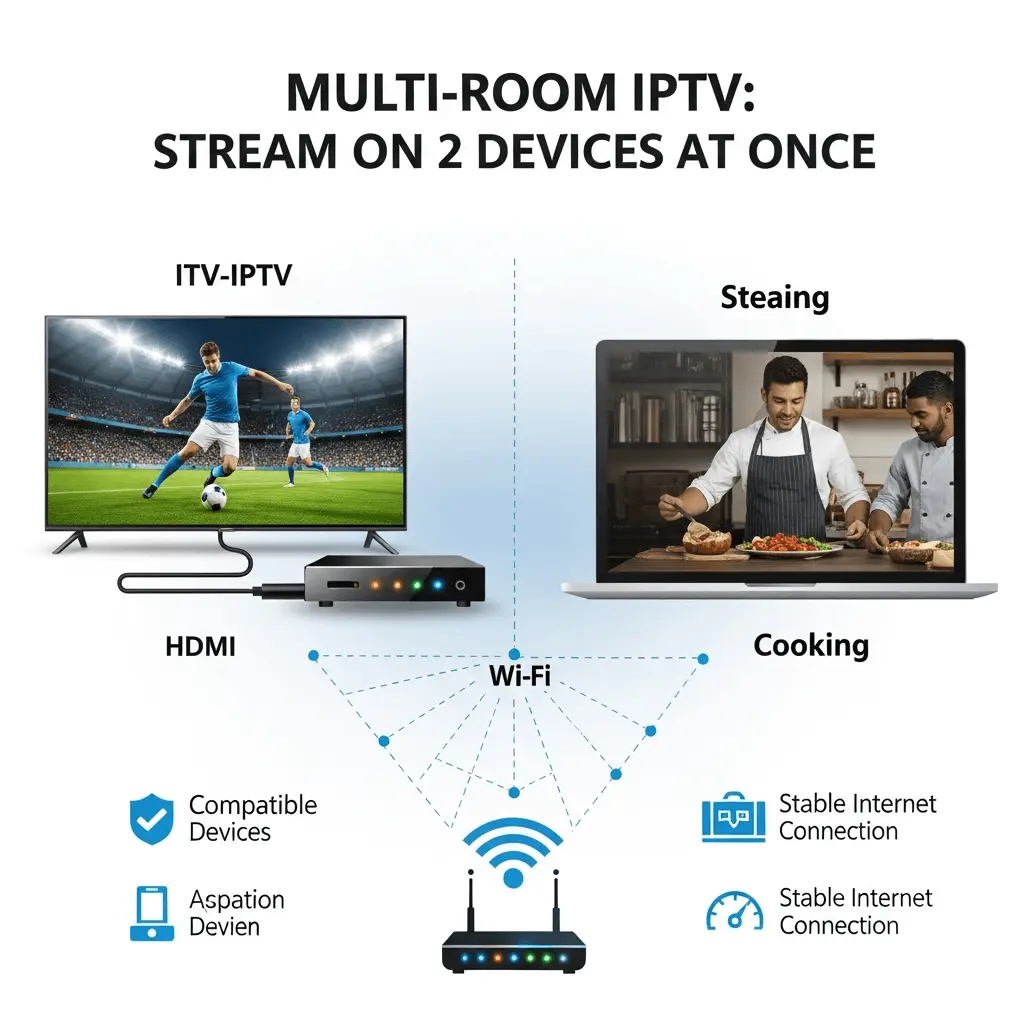
Multi-Room IPTV: How to Stream on 2 Devices at Once (Ultimate Guide 2025)
Stop fighting over the remote. Learn how to set up concurrent streams, manage bandwidth, and unlock the full potential of your IPTV subscription for the whole family.
The End of the "Living Room Monopoly"
It is a Saturday night. The big game is on, and you have been waiting all week to watch it. But your partner wants to binge-watch the latest series, and the kids are clamoring for cartoons. In the old days of cable, this meant you needed expensive multi-room boxes, drilled holes in your walls for coaxial cables, and a monthly bill that could rival your car payment.
Welcome to the era of Multi-Room IPTV. Unlike traditional cable, IPTV (Internet Protocol Television) utilizes your existing internet connection to deliver content. This means you aren't tied to a specific wall outlet. You can stream in the living room, the bedroom, the basement, or even the backyard patio?€”all at the same time.
However, simply installing an app on a second TV isn't enough. You need to understand concurrent connections, bandwidth management, and network optimization to ensure everyone streams in 4K without the dreaded buffering wheel. In this comprehensive guide, we will walk you through everything you need to know to turn your home into a multi-screen entertainment hub using Storuno IPTV.
What Are "Concurrent Connections"?
In the world of IPTV, a "connection" refers to a single active stream. If you are watching a movie on your TV, that is 1 connection.
Most standard IPTV subscriptions come with a single connection allowance. This means you can install the service on as many devices as you want (your phone, tablet, bedroom TV), but you can only watch on one of them at a time.
?š ? The Mistake: If you try to stream on a second device with a single-connection plan, the first device will typically cut off, display an error, or both screens will start buffering uncontrollably.
To watch on two or more devices simultaneously, you need a Multi-Connection Plan. This licenses your account to request multiple data streams from the server at the same time.
The "Family Harmony" Equation
- 1 Standard Plan: 1 Screen (Solo Viewer)
- 2 Dual Plan: 2 Screens (Couples)
- 3 Family Plan: 3-4 Screens (Parents + Kids)
The Mathematics of Multi-Room Streaming
Before you upgrade your plan, you must upgrade your understanding of your home network. Streaming video is data-intensive. When you double the number of screens, you double the demand on your internet connection. If your internet speed isn't fast enough, adding a second screen will ruin the experience for everyone.
Per Device
Per Device
Per Device
Real-World Scenarios
Scenario A: The Sports Fanatic Couple
Living Room: 4K Football Game | Bedroom: HD Movie
Scenario B: The Full House
Living Room (4K) + Bedroom (HD) + iPad (HD) + Teenager Gaming
*Note: These numbers refer to stable, sustained speed, not just the "peak" speed your ISP advertises. To learn more about optimizing for 4K, read our guide on Smart4K Streaming Technology.
How to Set Up 2+ Devices (Step-by-Step)
Verify Your Subscription Limits
Log in to your client dashboard or check your welcome email. Look for "Connections" or "concurrent streams." If it says "1", you cannot watch on two devices yet.
If you try to use a single account on two devices, you will experience "account locking" or severe freezing as the server boots one device off to let the other on.
→ Upgrade to a Multi-Room Plan herePrepare Your Hardware
For a consistent multi-room experience, consistency in hardware helps. We recommend using Amazon Firesticks (4K Max versions) for all TVs. They are cheap, powerful, and easy to clone.
Why not Smart TV apps? Smart TV processors are often weaker than Firesticks. When you are stressing your home network with multiple streams, you want the device to handle the decoding efficiently. Read our comparison of Cable vs. IPTV Hardware.
Install the IPTV Player on Device #2
You don't need a "special" multi-room app. You simply install the same player you use on your main TV (e.g., IPTV Smarters Pro, TiviMate, or XCIPTV).
Need help installing? Follow our guide: How to Install IPTV on Firestick (2025 Guide).
Input the Same Credentials
This is the easiest part. Use the exact same Username, Password, and Server URL that you use on your first device.
Pro Tip: If you are using TiviMate Premium, you can backup your settings from Device 1 and restore them on Device 2 to instantly copy your favorites and playlist order!
Optimizing Your Network for Heavy Traffic
Streaming on one device is like driving a car on a highway. Streaming on three devices is like rush hour traffic. You need to manage the flow to prevent accidents (buffering).
1. Wired vs. Wireless
WiFi is convenient, but Ethernet is king. WiFi signals fluctuate based on distance and interference (walls, microwaves). For your main "Living Room" TV, always try to use an Ethernet Adapter. This frees up the WiFi bandwidth for secondary devices like tablets or bedroom TVs.
2. The 5GHz Advantage
If you must use WiFi, ensure your devices are connected to the 5GHz band of your router, not the 2.4GHz band. 5GHz is much faster and can handle the high data rates of 4K streams, although its range is shorter.
3. QoS Settings
Log into your router's admin panel and look for "QoS" (Quality of Service). You can set your streaming devices (Firesticks) to "High Priority." This tells your router: "If someone starts downloading a game on the PC, don't let it slow down the TV."
4. Mesh WiFi Systems
If you have a large house and want IPTV in the upstairs bedroom, a standard router might not reach. Invest in a Mesh WiFi system (like Eero or Orbi) to blanket your home in strong, fast WiFi.
Troubleshooting Multi-Device Issues
Problem: Both TVs buffer at the same time.
Diagnosis: Your internet bandwidth is likely maxed out, or your ISP is throttling your connection because they see a massive amount of streaming data.
Fix: Run a speed test while both TVs are on. If speed is low, upgrade your internet plan. If speed is high but buffering persists, you are likely being throttled. Use a VPN or switch to a provider with Anti-Freeze Technology.
Problem: One TV works, the other gives "Playback Error".
Diagnosis: You have exceeded your connection limit. Even if you paid for 2 connections, maybe your phone app is still running in the background, counting as a 3rd connection.
Fix: Force close apps on all devices not in use. Check your account status to see how many active connections are detected.
Problem: The bedroom TV lags, but the living room is fine.
Diagnosis: This is a WiFi range issue. The bedroom is likely too far from the router.
Fix: Use a WiFi extender, a Mesh system, or Powerline adapters to get a better signal to that specific room.
Frequently Asked Questions
Can I share my account with my friend in another house?
Typically, no. Most multi-room plans are designed for a single household (IP Lock). If the system detects two different IP addresses (locations) accessing the same account simultaneously, it may flag the account for sharing and ban it. Always check the terms of service. For friends, it is better to refer them?€”check our Affiliate Program.
Does recording (DVR) count as a connection?
Yes. In most systems, if you are watching Channel A and recording Channel B simultaneously, that counts as 2 connections because the server is sending two distinct video streams to your device.
Is it cheaper to buy 2 separate subscriptions?
Usually, no. Buying a single subscription with 2-4 connections is significantly cheaper than buying two separate 1-connection subscriptions. Upgrading your current plan is the most cost-effective route.
Ready to Upgrade Your Experience?
Don't let a single screen limit your entertainment. With the right plan and setup, your whole family can enjoy their favorite content whenever they want.
Want to learn more? Read our latest blog on The Future of 4K Streaming.